Connect Workspace One UEM to Smallstep (macOS)
Smallstep can integrate with Omnissa Workspace ONE UEM to keep your device inventory in sync and to exchange SCEP tokens. A SCEP token is a single-use password that's used by devices to get a certificate from Smallstep.
This guide covers deploying the Smallstep Agent to macOS endpoints with Workspace ONE UEM. If you are managing Windows devices, see Connect Workspace One UEM to Smallstep instead.
Prerequisites
You will need:
- A Smallstep team
- A Workspace ONE UEM tenant
- A test device to enroll for management
- This should be a Mac running macOS 13 (Ventura) or later with a Secure Enclave, enrolled in Workspace ONE UEM.
Step-by-step instructions
1. Connect Smallstep to Workspace ONE via OAuth
First, we’ll create a scoped API role for Smallstep:
-
In Workspace ONE UEM, navigate to Accounts → Admin Roles and choose + Add Role
-
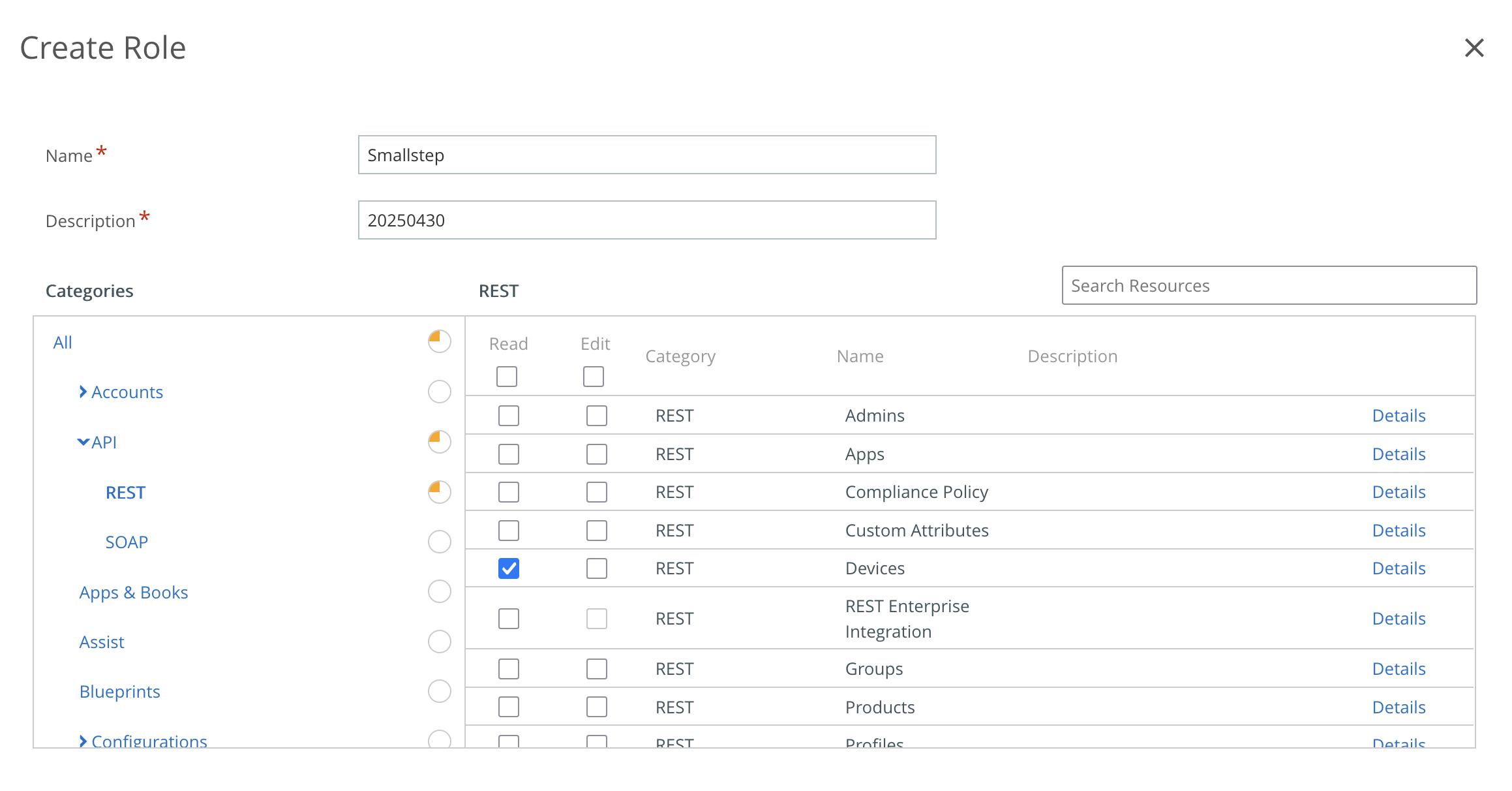
Create a role named “Smallstep” with a description of “Smallstep Integration”
-
Smallstep needs Read access to Devices, using the REST API. Choose API → REST on the left, and choose ✅ Read for the row “Devices”
-
Choose Save
Next, we’ll create an OAuth client for Smallstep:
- In Workspace ONE UEM, navigate to Groups & Settings → Configurations and find OAuth Client Management in the list
- Choose Add and add a new client with a name of “Smallstep” and description of “Smallstep MDM Integration for Device Sync”
- For Organization Group, select the group most appropriate for managing your desired device inventory
- For Role, choose Smallstep
- Choose Save
- Save the resulting client ID and secret value to a temporary location
2. Configure Smallstep OAuth settings
In Smallstep, navigate to Settings → Device Management.
Configure a new Omnissa Workspace ONE Integration with the values you gathered above:
- The Workspace ONE UEM REST API URL for your tenant.
- This URL is shown in UEM’s settings. Navigate to
Groups and Settings → All Settings → System → Advanced → API → Rest API - Copy the REST API URL from that page
- This URL is shown in UEM’s settings. Navigate to
- The Workspace ONE UEM OAuth 2.0 Token URL for your region
- The OAuth client ID and secret you saved in Step 1
After saving the Workspace ONE connection, you will see settings for your integration. Copy the following details for later:
- SCEP URL
- SCEP Challenge URL
- Challenge Basic Authentication Username
- Challenge Basic Authentication Password
Within a few minutes after adding the connection, you should see all of your Workspace ONE devices in the Devices tab. Device inventory is synced approximately every four hours.
3. Deploy the Smallstep agent
In this step, we’ll add the Smallstep Agent to Workspace One UEM for distribution to your macOS devices.
Note: if you don't want to use Workspace ONE UEM to install the agent, see the Smallstep Agent Manual Installation guide.
The macOS package is universal, so a single .pkg covers both Apple silicon and Intel Macs.
- In Workspace One UEM,
- Go to Resources → Native Apps.
- Choose Add → Application File.
- Download the latest version of the agent from the link above and select it for upload to UEM.
- Choose Continue
- In the Add Application panel’s Details tab,
- For Minimum OS, select macOS 13.0 (Ventura)
- In the Add Application panel’s Deployment Options tab,
- Set Install Context to Device
- Finally, choose Save & Assign
Assigning the application
After saving the Native App, you'll see the Application Assignment panel.
- Give the Assignment a name
- Choose the groups you’d like to assign the application to. Assign the app to a single device or a small group of test devices for a staged rollout.
- Select App Delivery Method: Auto
- Create the Assignment.
- Choose Save
- Choose Publish to begin distributing the app.
4. Configure the agent enrollment and configuration profile
In this step, we’ll tie everything together by creating a macOS profile that issues a certificate to each device and configures the Smallstep Agent to enroll with your team.
Gather required details
You’ll need the following values from when you configured your Workspace ONE connection:
- SCEP URL
- SCEP Challenge URL
- Challenge Basic Authentication Username
- Challenge Basic Authentication Password
If you need to retrieve these again, you can always visit: Settings → Device Management → Omnissa Workspace ONE
You’ll also need your Team slug, shown in the Smallstep UI under Settings → Team.
Add a Workspace ONE CA resource
For compatibility with Workspace ONE, Smallstep emulates the Microsoft ADCS’s Dynamic SCEP and NDES enrollment protocols.
- In Workspace One UEM, visit Resources → Certificate Authorities
- Choose + Add
- Provide a name for the CA connection, for example, Smallstep Agents CA
- For Authority Type, choose
Microsoft ADCS - For Protocol, choose
SCEP - For Version, choose
NDES 2008/2012(NDES for SCEP) - Provide the SCEP URL
- For Challenge Type, choose
Dynamic - Provide the Challenge Username and Password
- No client certificate is needed
- Provide the SCEP Challenge URL
- Choose Show Advanced Options
- For SCEP Challenge Length, choose
32
- For SCEP Challenge Length, choose
- Choose Test Connection and wait for a ✅ success modal
- Choose Save and Add Template
Add a Workspace ONE certificate request template
A new modal screen will be presented with the empty Request Template configuration
- Provide a name for the Template, for example,
Smallstep Agents - For Certificate Authority, choose the Smallstep CA you just connected
- For the subject name, use a value of
CN={DeviceUuid} - For Private Key Length, use 2048
- For Private Key Type, choose both Signing and Encryption
- Add a new SAN Type of type URL, and set the value to
deviceid://{DeviceUuid} - For Automatic Certificate Renewal, choose Enabled
- Pick an appropriate Auto Renewal Period (5 days is common)
- Ensure Publish Private Key is Disabled
- Choose Save
Create a macOS profile
- In Workspace One UEM,
- Go to Resources → Profiles.
- Click Add, and pick Add Profile from the drop-down
- Click Apple macOS, and then select Device Profile
- Under General, Provide a name (for example, "Smallstep Device Enrollment")
- Select the appropriate group in the Smart Groups select list
- Other options can be left as-is
- Optionally, click the View Device Assignment button to see the devices to which the profile will be distributed
- Select the SCEP payload type on the left and choose Configure. Set the following settings:
- Credential Source: Defined Certificate Authority
- Certificate Authority: Choose the CA connection you created earlier
- Certificate Template: choose the
Smallstep Agentstemplate you created earlier - Allow all applications access: ☑️ (so the Smallstep Agent can use the issued identity)
- Select the Custom Settings payload type on the left and choose Configure. This delivers the Smallstep Agent configuration as a managed preference in the
com.smallstep.Agentdomain.-
Paste the following, replacing
<team-slug>with the Team slug value you copied from the Smallstep UI earlier:<dict> <key>TeamSlug</key> <string><team-slug></string> <key>Certificate</key> <string>mackms:label=$PROFILE_IDENTIFIER;se=false;tag=</string> </dict>
-
The
Certificatevalue is a KMS URI that points the agent at the identity installed by the SCEP payload above. Thelabelmust match the keychain label Workspace ONE assigns to that identity; adjust it to the lookup value your Workspace ONE tenant uses if$PROFILE_IDENTIFIERdoes not resolve.
-
- Click Save and Publish to finalize the configuration of the profile.
- A modal screen will be shown with the devices to which the profile will be distributed. Click Publish if the assignment looks OK.
Confirmation
In the Smallstep console, find your device. In the Device Registration section, you'll see an Enrolled At timestamp. Workspace ONE's device UI also shows both the installed apps and issued certificates on the device.
On the device itself, you can run /Applications/SmallstepAgent.app/Contents/MacOS/SmallstepAgent version to confirm the agent is installed. In System Settings → General → Login Items, you should also see a Smallstep Agent entry.
Last updated on February 3, 2026

Introducing
Device Identity
Ensure that only company-owned devices can access your enterprise's most sensitive resources.
