Troubleshooting Guide
This guide helps you diagnose and resolve issues with Smallstep Device Identity. Whether you're onboarding new devices or managing a mature deployment, use this guide to discover and resolve problems at their source.
Where to begin?
Troubleshooting is easier when you identify what changed. Ask yourself:
- Did you recently set up Smallstep or connect a new MDM? Start with Platform & MDM Troubleshooting.
- Did you change MDM credentials, SCEP settings, or Smallstep configuration? Start with Platform & MDM Troubleshooting.
- Is this a single device that stopped working? Start with Agent & Endpoint Troubleshooting.
- Are certificates expired or is an app unable to connect? Start with Agent & Endpoint Troubleshooting.
If you're not sure, start with the Platform & MDM Troubleshooting section—platform-level issues affect more users and are faster to rule out.
Platform & MDM troubleshooting
This section covers issues with the Smallstep console, MDM integrations, and configuration that affect multiple devices.
Check for alerts
First, check your Smallstep dashboard for any alerts. If you've exceeded device quotas or have configuration issues, you'll see a banner on the Devices page.
MDM sync issues
Symptoms:
- "I'm not seeing any devices sync from the MDM"
- "My devices are no longer syncing from the MDM"
- "I'm not seeing a particular device sync from the MDM"
Smallstep performs a partial device sync with connected MDMs at least every hour, and a full sync every 8 hours.
Troubleshooting steps:
- In Settings → Device Management, select your MDM provider.
- Check that the status shows Connected.
- Visit the Logs tab:
- Authentication errors: API credentials may not match between the MDM and Smallstep, or may have expired. Check the Overview tab for the API Client ID and Client Secret.
- For Entra ID: Ensure there's only one Client Secret associated with the Smallstep Entra ID Application.
- Other errors: Contact Smallstep support with the error details via an escalation channel.
- Authentication errors: API credentials may not match between the MDM and Smallstep, or may have expired. Check the Overview tab for the API Client ID and Client Secret.
Incomplete device data
Symptoms:
- "My devices are syncing, but I'm not seeing all the data associated with devices"
- "The synced devices aren't binding to users"
Troubleshooting steps:
- Wait for the next partial sync.
- If data is still missing, contact Smallstep support via an escalation channel.
Permission issues
Symptoms:
- "I can see my own device on Smallstep.com, but I can't view or manage other devices"
- "I can't approve devices"
Solution: your Smallstep user doesn't have the correct permissions. Contact your account owner to request the appropriate role.
SCEP certificate failures
Symptoms:
- "The SCEP Certificate payload is failing for every device"
- "SCEP enrollment isn't working"
Troubleshooting steps:
- Confirm that the SCEP URL in your MDM matches the URL in Smallstep settings.
- Verify the SCEP credentials (username/password) are identical in both the MDM and Smallstep.
- Check if credentials have expired. If so, update them in both places.
- Retry the SCEP payload.
- If the issue persists, contact Smallstep support via an escalation channel.
Device approval and attestation
Symptom: "The device is approved in Smallstep, but it's Pending Attestation"
The agent may not be installed or may not be running on the device.
Troubleshooting steps:
-
Check your MDM or package management logs to verify the agent was installed successfully.
- Check for any errors related to agent installation.
-
If not using MDM, verify installation by checking the agent version on the device (see Platform-Specific Reference).
-
In the Smallstep console, open the device and check the Logs tab. Has the agent logged in? Look for
MISSION_CONTROL_AGENT_LOGINevents: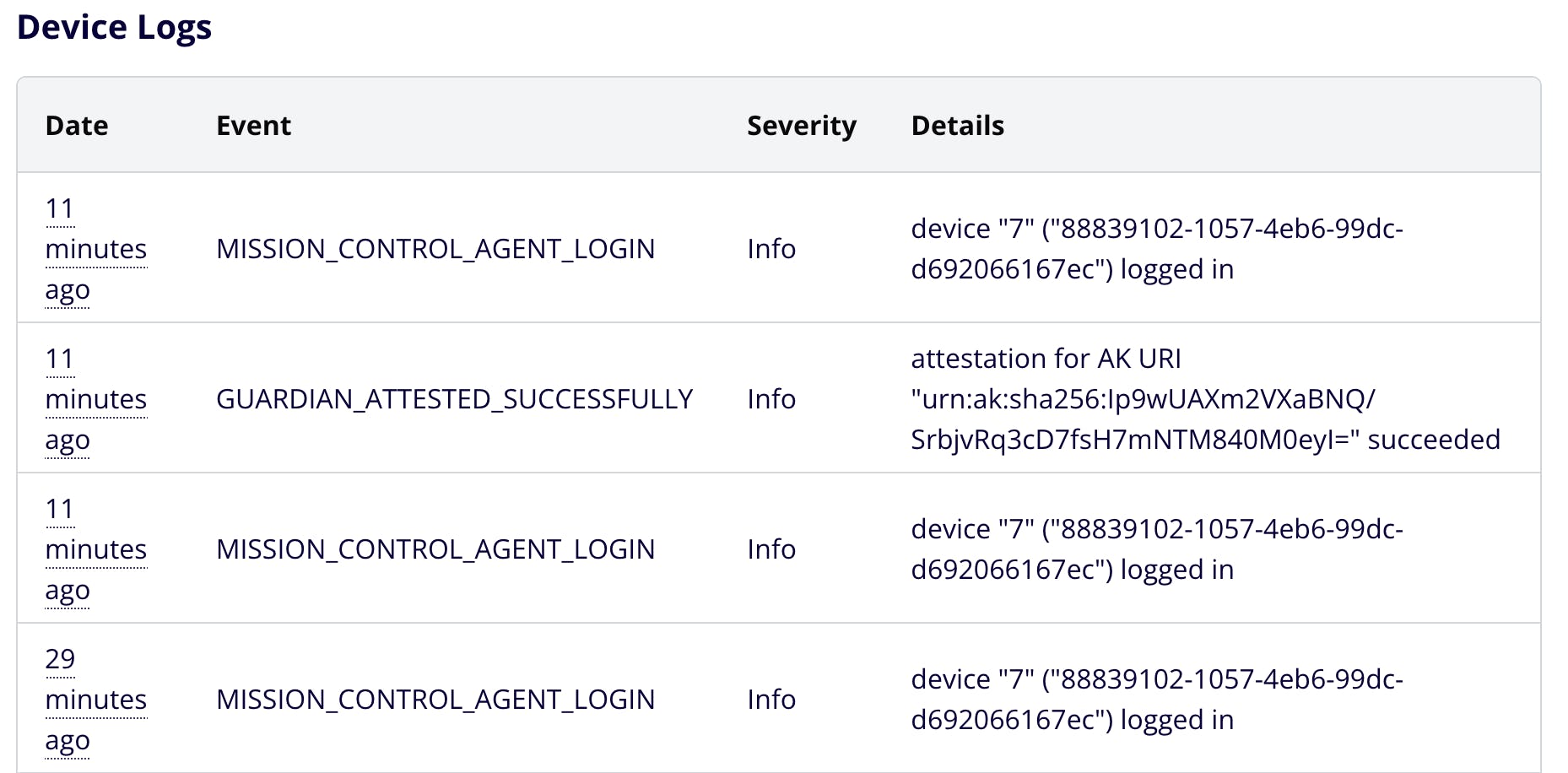
- If not, the service manager may not be starting the agent properly.
- Check if the agent process is running on the device.
- Try rebooting the device.
-
If the agent still hasn't logged in, contact Smallstep support.
Symptom: "The device is approved, but it's not converting to a Smallstep-managed device (no green dot)"
Troubleshooting steps:
- Ensure the device is awake and connected to the internet.
- The agent checks in with Smallstep every minute by default.
- Check the device's Logs tab in the console for errors.
- If the status remains not-green, proceed to Agent & Endpoint Troubleshooting.
Resource and certificate issues
Symptom: "The device doesn't have the resources it should have" (for example, missing SSH certificate configuration)
Troubleshooting steps:
- Verify the device is in a collection that has the expected resources assigned.
- Check the device's Resources tab in the console.
- Ensure any required conditions (device posture, user groups) are met.
Symptom: "The device has resources but no valid certificates"
The agent may be checking in but not obtaining credentials properly. Proceed to Agent & Endpoint Troubleshooting.
Agent & endpoint troubleshooting
This section covers issues with individual devices, the Smallstep Agent, and endpoint-specific problems.
Prerequisites
Before troubleshooting endpoint issues, verify the device meets requirements:
- Review System Requirements
- Check Runtime Requirements
- Verify Connectivity Requirements
Using the doctor command
The Smallstep Agent includes a doctor command that performs automated health checks and provides diagnostic information. This is the recommended first step when troubleshooting endpoint issues.
Running the doctor command
On macOS:
step-agent-plugin doctor
On Windows:
& 'C:\Program Files\Smallstep\SmallstepApp\smallstep-agent.exe' doctor
On Linux:
sudo step-agent-plugin doctor
The doctor command runs a series of checks and displays results in a table format:
+------------------------------------------+--------+-------------+
| Check | Status | Description |
+------------------------------------------+--------+-------------+
| Check runtime requirements | PASS | |
| Ping the agent | PASS | |
| Check attestation CA connectivity | PASS | |
| Check API gateway connectivity | PASS | |
| Check mission control connectivity | PASS | |
| Bootstrap certificate authorities | PASS | |
| Verify issued certificates | PASS | |
| Sign with endpoint keys | PASS | |
| Enumerate PKCS#11 objects | PASS | |
+------------------------------------------+--------+-------------+
Understanding doctor output
Each check validates a specific aspect of the agent's functionality. A PASS status means the check succeeded, while FAIL indicates a problem that needs attention.
Check runtime requirements
What it checks: verifies that your system has the necessary components for the agent to function:
- TPM 2.0 availability - Ensures the Trusted Platform Module is accessible and can create/delete keys
- systemd (Linux only) - Confirms systemd is running for managing network connections
Common failure reasons:
- No TPM 2.0 module present or enabled in BIOS/UEFI/Virtual Machine
- TPM is locked or inaccessible
- User lacks permissions to access the TPM (Linux)
- systemd is not the init system (Linux)
Troubleshooting steps:
- Verify TPM 2.0 is enabled in your system BIOS/UEFI settings. In a virtual machine environment, you will need to either enable "TPM Passthrough" (which uses the host's hardware TPM), or enable TPM emulation for the machine. While emulated TPMs do not offer full hardware attestation, they can be useful for testing environments.
- On Linux, check TPM permissions:
ls -l /dev/tpm* - On Linux, ensure the user has read/write access to
/dev/tpmrm0 - On Windows, verify TPM is enabled: Run
tpm.mscor check Device Manager - On Linux, confirm systemd is running:
ps -p 1 -o comm=
Ping the agent
What it checks: verifies the agent background service is running and responding to IPC requests.
Common failure reasons:
- Agent service is not running
- Agent service crashed or failed to start
- IPC socket is inaccessible
Troubleshooting steps:
- Check if the agent service is running:
- macOS: Look for Smallstep in Activity Monitor
- Windows: Check Task Manager for the Smallstep Agent process
- Linux: Run
sudo systemctl status step-agent
- Restart the agent service:
- macOS/Windows: Restart from the desktop app or System Settings
- Linux: Run
sudo systemctl restart step-agent
- Check agent logs for error messages:
- Linux: Run
sudo journalctl -u step-agent -n 50
- Linux: Run
Check attestation CA connectivity
What it checks: tests network connectivity to att.smallstep.com (TPM Attestation CA).
Common failure reasons:
- Firewall blocking outbound HTTPS connections
- Proxy configuration required but not set
- Network connectivity issues
- DNS resolution failure
Troubleshooting steps:
- Test connectivity manually:
curl -v https://att.smallstep.com - Check firewall rules allow HTTPS to
att.smallstep.com - If behind a proxy, ensure proxy settings are configured
- Verify DNS resolution:
nslookup att.smallstep.com
Check API gateway connectivity
What it checks: tests network connectivity to gateway.smallstep.com (Smallstep API).
Common failure reasons:
- Same as attestation CA connectivity issues
Troubleshooting steps:
- Test connectivity manually:
curl -v https://gateway.smallstep.com - Check firewall rules allow HTTPS to
gateway.smallstep.com - Review network and proxy configuration
Check Mission Control connectivity
What it checks: tests gRPC connectivity to control.infra.smallstep.com:443 (Agent API).
Common failure reasons:
- Firewall blocking port 443 for gRPC traffic
- Deep packet inspection interfering with gRPC
- Proxy not configured for gRPC
Troubleshooting steps:
- Test connectivity manually:
curl -v https://control.infra.smallstep.com - Check firewall rules allow HTTPS/gRPC to
control.infra.smallstep.com - Some corporate firewalls may block gRPC - work with your network team
What it checks: verifies the agent can retrieve and validate CA root certificates from your Smallstep team's CA.
Common failure reasons:
- Connectivity issues to
<your-team>.ca.smallstep.com - Invalid or expired CA fingerprint in configuration
- Agent not properly registered with your team
Troubleshooting steps:
- Verify connectivity to your CA:
curl -v https://<your-team>.ca.smallstep.com - Check the agent configuration file for correct team name and fingerprint:
- macOS/Windows: Configuration in app settings
- Linux: Check
/etc/step-agent/agent.yaml
- Ensure the device is approved in your Smallstep console
Verify issued certificates
What it checks: validates that all endpoint certificates are currently valid (not expired or not yet valid).
Common failure reasons:
- Certificates expired due to agent being offline
- System clock is incorrect
- Certificate renewal failed
Troubleshooting steps:
- Verify system clock is accurate:
date - If clock was wrong, correct it and restart the agent
- Check when certificates will expire (look in agent logs or desktop app)
- Run doctor with
--renewflag to force certificate renewal (see below)
Sign with endpoint keys
What it checks: tests that the agent can perform cryptographic signing operations with endpoint keys stored in the TPM/Secure Enclave.
Common failure reasons:
- TPM/Secure Enclave access issues
- Keys were deleted or corrupted
- Permission issues accessing keys
Troubleshooting steps:
- Verify TPM/Secure Enclave is accessible (see runtime requirements above)
- Check agent logs for key access errors
- If keys are corrupted, the agent may need to re-register
Enumerate PKCS#11 objects
What it checks: (Linux/macOS only) verifies that certificates and keys are accessible via the PKCS#11 interface.
Common failure reasons:
- PKCS#11 server not running
P11_KIT_SERVER_ADDRESSenvironment variable not set correctly- p11-kit not installed or configured
Troubleshooting steps:
- Verify the PKCS#11 socket exists:
ls -l $XDG_RUNTIME_DIR/step-agent/step-agent-pkcs11.sock
- Check the environment variable:
echo $P11_KIT_SERVER_ADDRESS
- Test PKCS#11 manually:
pkcs11-tool --module /usr/lib/x86_64-linux-gnu/pkcs11/p11-kit-client.so --list-slots - See PKCS#11 Support for configuration details
Advanced doctor options
Force certificate renewal
To test certificate renewal as part of the doctor checks, use the --renew flag:
step-agent-plugin doctor --renew
This will attempt to renew all endpoint certificates and report any failures. This is useful when:
- Certificates are close to expiration
- Testing the renewal workflow
- Recovering from a certificate expiration issue
The --renew flag will trigger certificate renewal for all endpoints, which may briefly interrupt services using those certificates.
JSON output
For scripting or integration with monitoring tools, use the --json flag:
step-agent-plugin doctor --json
This outputs check results in JSON format:
{
"authorities": {
"Description": "",
"State": "PASS"
},
"certificates": {
"Description": "",
"State": "PASS"
},
"network-attestation": {
"Description": "",
"State": "PASS"
},
"network-control": {
"Description": "",
"State": "PASS"
},
"network-gateway": {
"Description": "",
"State": "PASS"
},
"ping": {
"Description": "",
"State": "PASS"
},
"preflight": {
"Description": "",
"State": "PASS"
},
"sign": {
"Description": "",
"State": "PASS"
}
}
Common issues and solutions
Agent won't start
Symptoms:
- Agent service fails to start
- Desktop app shows "Agent not running"
- Doctor ping check fails
Solutions:
- Check system requirements are met
- Run
step-agent-plugin doctorto identify specific issues - Check agent logs for startup errors
- Restart the system if the TPM is in an inconsistent state
- On Linux, check for conflicting services using the same ports
Network connectivity issues
Symptoms:
- All network checks fail in doctor output
- Agent shows "offline" status
- Certificate renewal fails
Solutions:
- Verify internet connectivity:
ping 8.8.8.8 - Test DNS resolution:
nslookup gateway.smallstep.com - Review Connectivity Requirements
- Check corporate firewall and proxy settings
- Ensure all required Smallstep hosts are allowlisted
Certificate expired or invalid
Symptoms:
- "Verify issued certificates" check fails
- Applications can't authenticate
- Certificate errors in browser or VPN
Solutions:
- Check system clock is accurate
- Run
step-agent-plugin doctor --renewto force renewal - If agent was offline for extended period, certificates may have expired
- Check agent logs for renewal errors
- Verify connectivity to your team's CA
TPM/Secure Enclave access issues
Symptoms:
- Runtime requirements check fails
- "Sign with endpoint keys" check fails
- Agent can't create or access keys
Solutions:
- Windows:
- Run agent with administrator privileges
- Verify TPM is enabled in Device Manager
- Check TPM status:
Get-Tpmin PowerShell
- macOS:
- Ensure app has keychain access permission
- Check System Settings > Privacy & Security > Keychain
- Linux:
- Check TPM permissions:
ls -l /dev/tpmrm0 - Add user to tss group:
sudo usermod -a -G tss $USER - Verify tpm2-tss is installed
- Check TPM permissions:
PKCS#11 not working (linux/macos)
Symptoms:
- Applications can't access certificates via PKCS#11
- Chrome/Firefox don't see Smallstep certificates
- NetworkManager can't use agent certificates
Solutions:
- Verify PKCS#11 socket exists and is accessible
- Set environment variable correctly:
export P11_KIT_SERVER_ADDRESS=unix:path=$XDG_RUNTIME_DIR/step-agent/step-agent-pkcs11.sock
- Install p11-kit if not present
- Test with
pkcs11-tool --list-slots - See PKCS#11 configuration guide
Cannot access a resource (wi-fi, VPN, web app)
Symptoms:
- "I can't connect to Wi-Fi / VPN / web application"
- Authentication failures when accessing protected resources
Troubleshooting steps:
- Find the device in the Smallstep console and verify it shows a green status.
- Ensure the device is awake and connected to the internet.
- In your MDM, check for any failed commands for the device.
- Verify the SCEP Webhook URL and credentials match between your MDM and Smallstep settings.
- Open the device's Certificates tab in the console. Verify the resource you're trying to access is listed and has a valid certificate.
- If a certificate exists: The issue is between the Smallstep Agent and the client application. Check the client's certificate configuration. See Platform-Specific Reference for certificate locations.
- If no certificate exists: The resource may not be assigned to this device, or there may be an agent issue. Check the device's Resources tab and run
doctor.
Getting help
If you've tried the troubleshooting steps above and still have issues:
- Run doctor command and save the output
- Collect agent logs:
- Linux:
sudo journalctl -u step-agent -n 200 - macOS/Windows: Export logs from the desktop app
- Linux:
- Note your configuration:
- Operating system and version
- Smallstep Agent version (
step-agent-plugin version) - Any error messages or failure descriptions
- Contact Smallstep support with the information above
For security issues or private questions, email support@smallstep.com.
Platform-specific reference
Quick reference for platform-specific commands and file locations.
macOS
| Task | Command or Location |
|---|---|
| Check if agent is running | Activity Monitor → search for SmallstepAgent |
| Check agent version | /Applications/SmallstepAgent.app/Contents/MacOS/SmallstepAgent version |
| Restart agent | launchctl stop com.smallstep.launchd.SmallstepAgent |
| Run doctor | step-agent-plugin doctor |
| Certificate location | /Users/<user>/Library/Application Support/Smallstep/certificates/ |
| Inspect a certificate | step certificate inspect --bundle /path/to/cert.crt |
| Collect logs | /Applications/SmallstepAgent.app/Contents/MacOS/SmallstepAgent logs collect /tmp/smallstep.log |
Windows
| Task | Command or Location |
|---|---|
| Check if agent is running | Task Manager → search for Smallstep |
| Check agent version | & "C:\Program Files\Smallstep\SmallstepApp\smallstep-agent.exe" version |
| Run doctor | & "C:\Program Files\Smallstep\SmallstepApp\smallstep-agent.exe" doctor |
| Certificate location | Windows Certificate Store (certmgr.msc for Current User, certlm.msc for Local Machine) |
| Collect logs | & "C:\Program Files\Smallstep\SmallstepApp\smallstep-agent.exe" logs collect |
Linux
| Task | Command or Location |
|---|---|
| Check if agent is running | systemctl status step-agent |
| Check agent version | step-agent-plugin version |
| Restart agent | sudo systemctl restart step-agent |
| Run doctor | sudo step-agent-plugin doctor |
| Certificate location | /var/lib/step-agent/certificates/ |
| Agent logs | /var/lib/step-agent/logs/ or sudo journalctl -u step-agent |
| Collect logs | step-agent-plugin logs collect --log-dir /var/lib/step-agent/logs |
| Agent configuration | /etc/step-agent/agent.yaml |
If the agent won't start, check for this message in the logs:
step-agent.service was skipped because of an unmet condition check
(ConditionPathIsReadWrite=/etc/step-agent/agent.yaml)
This may indicate the device needs to be registered and approved. See Registering and Approving Endpoints.
ChromeOS
| Task | How to Check |
|---|---|
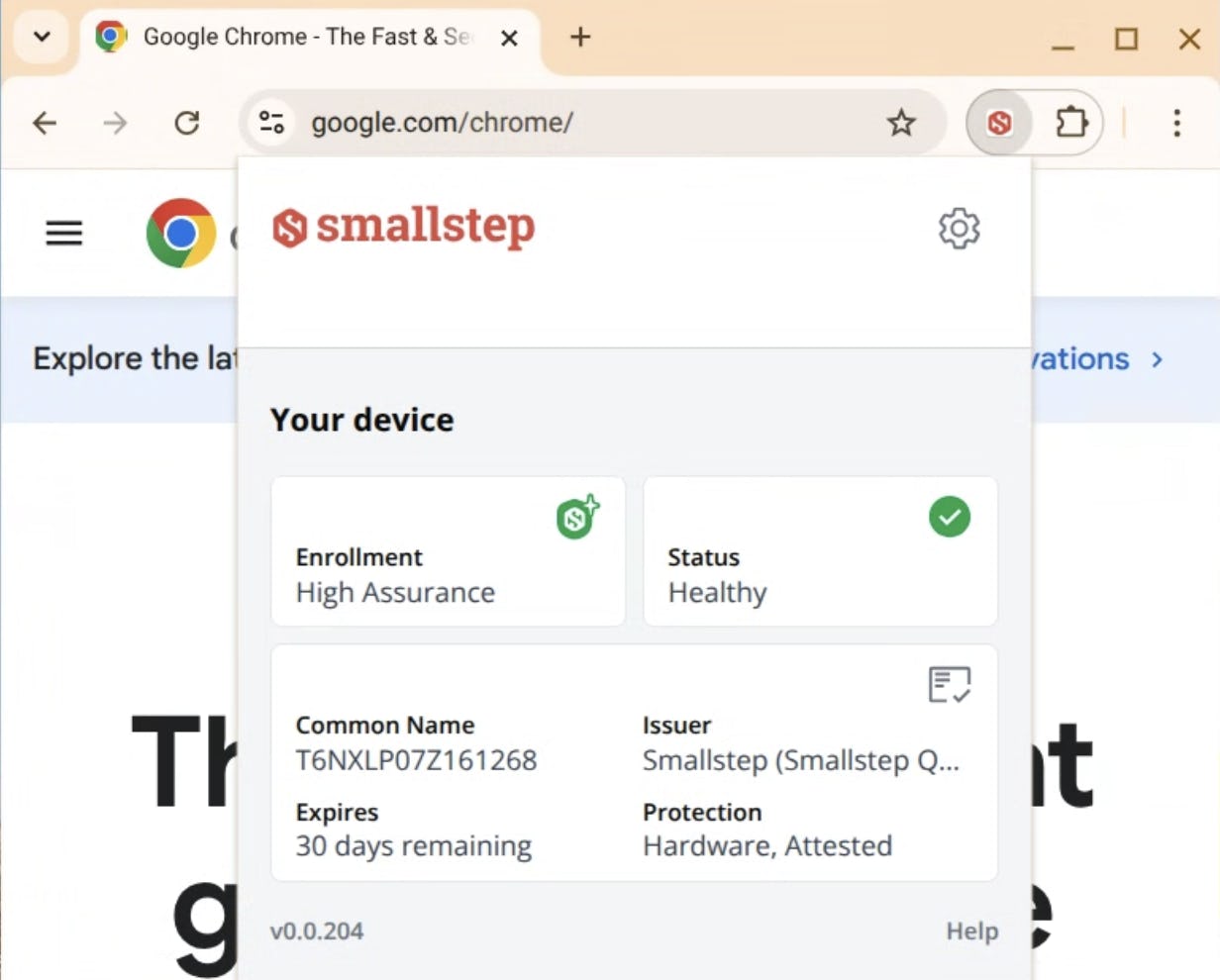
| Check extension version | Click the Smallstep extension icon in Chrome toolbar (version shown at bottom) |
| Verify device enrollment | Device must be enrolled in Google Workspace for enterprise/education |
| Check policies | Navigate to chrome://policy and look for Smallstep Agent for ChromeOS |
| Verify certificates | Navigate to chrome://certificate-manager |
ChromeOS Requirements:
- Device enrolled in a Google Workspace domain
- Device registered in Smallstep with matching serial number
- Users must be managed Google Workspace users
- Users and devices in the same Google Workspace domain (and OU, if used)
- Required policies deployed via
chrome://policy:Smallstep Agent for ChromeOSconfiguration with your team slugExtensionInstallForceListcontaining the ChromeOS extension IDAttestationExtensionAllowListcontaining the ChromeOS extension ID
The extension retries certificate issuance every ~30 seconds. If enrollment continues to fail, contact Smallstep support.
Last updated on February 3, 2026

Introducing
Device Identity
Ensure that only company-owned devices can access your enterprise's most sensitive resources.
