Sync Google Workspace Users to Smallstep
Prerequisites
You will need:
- An account on the Smallstep platform. Need one? Register here
- Google Admin console privileges for your organization.
- A single domain name that your users will use, added and verified in the Google Admin console.
- A Google Cloud Platform (GCP) project dedicated to Smallstep in your Google Workspace Organization.
Features
The following provisioning features are supported:
- New Users and Periodical Pull of All Groups
- New users created through Google Workspace will be created in the third party application.
- Groups and Memberships will be synchronized periodically
- Push Profile Updates
- Updates made to the user's profile through Google Workspace will be pushed to the third party application.
- Push User Deactivation
- Deactivating the user or disabling the user's access to the application through Google Workspace will remove the user from Smallstep. They will no longer be able to sign in.
- Reactivate Users
- User accounts can be reactivated in the application.
Overview
- Configure the Google Auth Platform
- Set up API client access
- Configure Google Workspace settings in Smallstep Console
Step-by-step instructions
1. Configure Google Auth Platform
- Configure the Google Auth Platform
- Visit Configure Google Auth Platform
- Under App Information:
- App Name:
Smallstep - User support email: choose a Google email address
- App Name:
- Under Audience:
- Choose Internal
- Update Contact Information
- Agree to terms
- Create
- Create an OAuth client
- Visit Create an OAuth client
- Choose Application type: Web application
- Name it Smallstep
- Under Authorized Redirect URIs, choose + Add URI
- Specify
https://api.smallstep.com/auth/openid/callback
- Specify
- Create
- Copy the value of Client ID and Client secret and save them.
2. Connect your Google Workspace IdP
-
In the Smallstep dashboard, visit Connect a new Google Workspace IdP
-
Enter the client ID and client secret from above.
-
For the configuration endpoint, enter the following string:
https://accounts.google.com/.well-known/openid-configuration
-
For Domain, enter your company's primary Google Workspace domain name.
-
For Google Workspace Admin Email, enter the email address of a Google Workspace administrator.
-
Under User Syncing, select Sync users or Invite only.
-
Save
3. Set up API client access
In Google Workspace, you'll need to do a Domain-wide Delegation. You only need to do this once for Smallstep. If you have multiple Smallstep teams, your Google domain-wide delegation client ID is shared across those teams.
- Visit Domain-wide Delegation.
- Under API clients, choose Add new.
- For Client ID, fill in the API Client ID (a 21-digit number) given to you by Smallstep.
- For Scopes, enter the comma-delimited OAuth Scopes given to you by Smallstep.
- Choose Authorize.
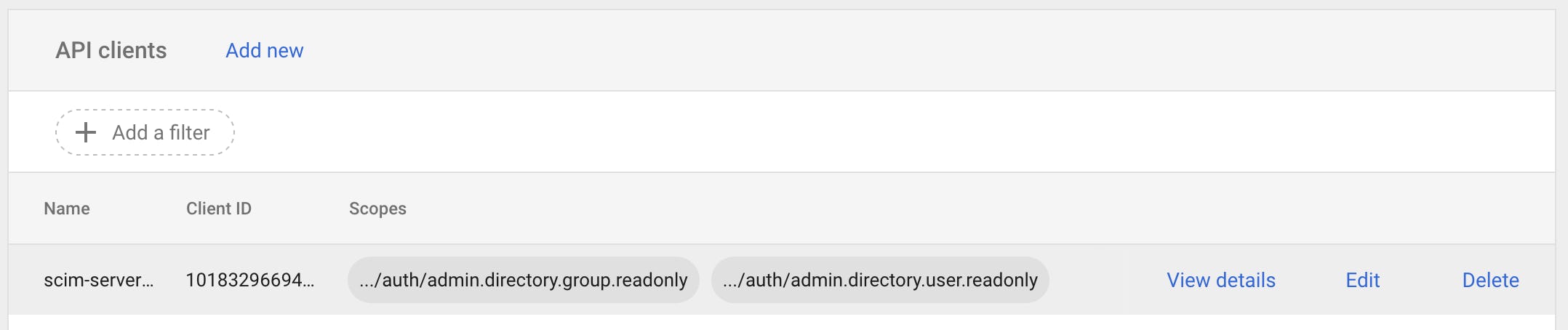
When you're finished, the Manage API Client Access screen page should resemble this:
Confirmation
It may take some time for users to sync over from Google to Smallstep. Back in the Smallstep Users tab, you should see your directory with users synced.
Last updated on February 3, 2026

Introducing
Device Identity
Ensure that only company-owned devices can access your enterprise's most sensitive resources.
